
User guide
Territoire, step by step
How to choose your area, run the assessment, read the results, produce a report, monitor your area, your contracts and your mobility plan. The tool is in French: button names are quoted as they appear on screen.
1
Choose your area
- Open Territoire: you land directly on the assessment.
- Type municipalities, postcodes or the name of an inter-municipal body, separated by commas, then tap “Ajouter”. An inter-municipal body adds all its municipalities.
- If a name is ambiguous, Territoire offers the options: tap the right one.
- Areas already studied are listed below, under “Secteurs déjà étudiés”: tap one to reopen it. On a phone, swipe right to archive it, left to delete it.
2
Run the assessment
- Tap “Lancer le diagnostic”.
- Progress is shown step by step, with a bar: about forty steps reading public sources. For the nine municipalities in the example, it took about a quarter of an hour.
- If the run is interrupted, start it again: what has already been downloaded is kept.
3
The assessment home: themes and tools
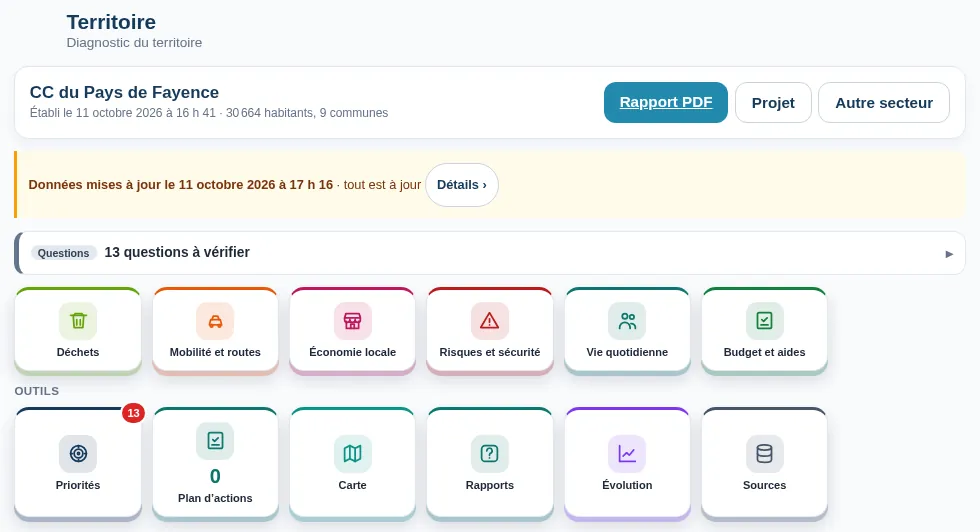
- At the top: the area's name, the date of the assessment and the “Rapport PDF”, “Projet” and “Autre secteur” buttons.
- Six themes: “Déchets : coûts et stratégie” (waste: costs and strategy), “Mobilité et routes” (mobility and roads), “Économie locale” (local economy), “Risques et sécurité” (hazards and safety), “Vie quotidienne” (daily life), “Budget et aides” (budget and funding), and a seventh, “L'eau” (water), as soon as its data has been read. Each opens a page with its screens and the button for that theme's report.
- Under “Outils” (tools): “Priorités”, “Plan d'actions”, “Contrats et programmes”, “Carte”, “Rapports”, “Évolution” and “Sources”.
- The arrow at the top left goes back one step, like the phone's back button. The house at the top right takes you straight to the app's home screen.
4
Open a detail
- A folded panel, “Voir le détail du calcul” or a “Fiche n°” cross-reference opens in a sheet that slides up from the bottom of the screen.
- To close it: the cross, a tap beside it, the Escape key or the phone's back button. You return to the page where you left it.
5
Alerts and questions to ask
- Below the header, a single line sums up legal obligations: “Alertes” for an established breach, “Questions” when data is missing or not conclusive.
- Tap it: the list opens, then each item in detail (who is concerned, the risk, the deadline, and “Pour corriger” or “Ce qu'il faut vérifier”).
- A question is never shown as a fault: it is marked “Question à poser”, to be confirmed with the local authority.
6
Priorities and action plan
- “Priorités” first groups the issues that overlap (same road, same people, same season), then each issue with its priority level, action, owner, cost range and funding.
- Tap “Ajouter au plan d'actions” on an issue, or “Voir sur la carte” to locate it.
- In “Plan d'actions”, track each action. You can also write your own under “Nouvelle action”, then “Ajouter”. A deleted action can be restored with “Annuler” for a few seconds.
7
The simulators
- Open “Simuler” from the “Déchets” or “Mobilité et routes” theme. Two tabs: “Déplacements” (travel) and “Déchets” (waste).
- Pick a question (“What if employees worked from home?”…) and adjust the sliders: the result appears at the top, as before / after cards.
- Nothing in the assessment is changed.
8
The map
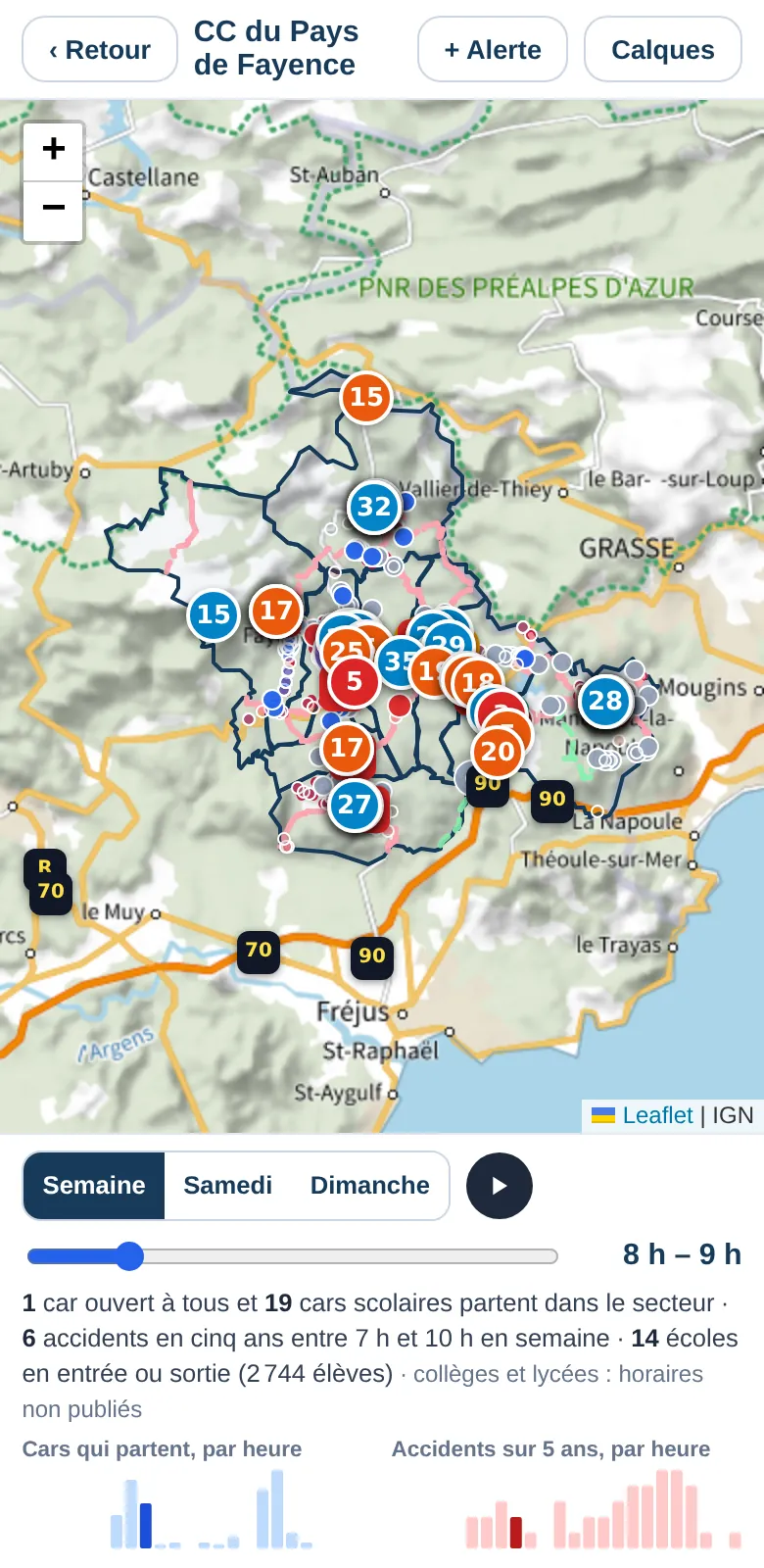
- Tap “Carte”. “Calques” shows or hides each layer; each item opens its details when tapped.
- Choose “Semaine”, “Samedi” or “Dimanche” (weekday, Saturday, Sunday) and slide the time: buses, accidents in that time slot and schools at opening or closing time appear.
- “+ Alerte” adds an alert point: place the crosshair on the exact spot by moving the map.
9
PDF reports
- Tap “Rapports”. Three ways: “Rapport complet (PDF)” with every topic studied, “Un rapport par thème” (one report per theme), or “À la carte” (topics you choose).
- À la carte: tick the topics you want; the screen says what the report will contain, then tap “Rapport à la carte”.
- For a waste meeting, “Préparer une commission” gives the answers, conclusions and questions to ask in the meeting.
10
Funding
- “Budget et aides” theme, then “Aides et financements”: the funding open to municipalities and inter-municipal bodies in your area (Aides-territoires), and Fonds vert projects already funded in your department.
- “Plan de financement”: choose an action, tick the funding, adjust the cost and rates; the remaining cost is calculated without saving anything.
11
Monthly monitoring and updates
- The assessment is rerun every month with current data. In “Évolution”, the “mise à jour automatique chaque mois” box sets this, and “Courriel qui reçoit les alertes” says who is notified; tap “Enregistrer”.
- An email is sent if an alert appears or gets worse, or if new funding applies to an action in your plan. “Évolution” also shows what has improved and what has gone.
- If sources have been published since, a banner says so: “Mettre à jour ces étapes” reruns only those steps.
12
Alert points
- “Risques et sécurité” theme, then “Points d'alerte”: first the points detected automatically in public data, then those recorded by your teams.
- Tap “Ajouter un point sur la carte”, or “+ Alerte” on the map. Describe facts and a place: never name anyone.
- “Terminé aujourd'hui” closes an ongoing point.
13
Water
- Tap the “L'eau” (water) theme, then “L'été, les fuites, l'assainissement”. The theme only appears once its data has been read: if you do not see it, tap “Mettre à jour ce diagnostic” (update this assessment) in the banner that lists added sources.
- At the top, three conclusions: will water last the summer, what leaks cost, individual sanitation. Each states its action; what is going well follows.
- Below, the detail unfolds section by section: today's restrictions, what was read for the summer, network losses service by service, sanitation, rivers, where the water comes from, rules applied.
14
Contracts and programmes
- Tap “Contrats et programmes” under “Outils”. The first time, “Voir un exemple rempli” shows an example contract; “Suivre un nouveau programme” starts yours from a template.
- “Ajouter une action” takes an action from the plan; “Ajouter un indicateur” links it to assessment data or to an entry (“Saisir une valeur”); “Ajouter une aide” opens its schedule, and “Noter un versement” keeps it up to date.
- “Bilan brouillon (PDF)” prepares the review; “Valider ce bilan” freezes it.
15
The simplified mobility plan
- “Mobilité et routes” theme, then “Plan de mobilité simplifié”: four tabs.
- “Enquête habitants” (residents' survey): “Préparer une enquête”, fill in the organiser, the contact and the notice reviewed by your data protection officer, then “Ouvrir aux habitants”. Share the link or “Télécharger le code QR”; “Clore l'enquête” when it is over.
- “Covoiturage mesuré”: “Lire les 12 derniers mois”. “Expérimentations”: “Nouvelle expérimentation”, with its start date and indicator.
- “Le document”: “Télécharger le projet (PDF)”.
Frequently asked questions
Any questions?
Where do I find this guide from the tool?
The question mark at the top of Territoire's screen leads to this page. For any other question, write to us at contact@challl.com.